

Last updated: 2026-10-05
With the Virtusx Jethro AI Mouse, starting voice typing is as simple as holding one button: put your cursor in any text field in any app, hold the voice button, speak, and release it when you're done. Windows' built-in Voice Typing takes more work — press Windows + H to call up a separate on-screen panel, move the mouse to click the microphone icon, wait for "Listening…" to appear, speak, then move back and click the microphone again to stop. That's a panel to open, an icon to find, and a second click just to stop talking, every single time. Jethro skips all of it: your hand never leaves the mouse. Here's the full breakdown.
The short version: both tools turn speech into text, but how easily you can start and stop matters most if you dictate often. Windows voice typing needs five separate actions — a keyboard shortcut, an on-screen panel, a click to start, a wait, and a click to stop. The Jethro AI Mouse needs three — hold the voice button, speak, release — because the microphone is built into the device you're already holding. Beyond speed to start and stop, Jethro also adds dedicated buttons for AI voice translation and AI chat, plus one-click AI meeting summaries through the free Virtusx AI App — none of which Windows voice typing offers. Below is a full breakdown so you can decide which fits your workflow.
How many steps does it take to start dictating?
| Step | Windows Voice Typing | Jethro AI Mouse |
|---|---|---|
| 1 | Press Windows + H | Hold the voice button |
| 2 | Click the mic icon | Speak |
| 3 | Wait for "Listening…" | Release |
| 4 | Speak | — |
| 5 | Click the mic again to stop | — |
Windows voice typing takes five separate actions — a keyboard shortcut, an on-screen panel, a wait, and two clicks — before and after you actually say anything. Jethro cuts that to three: hold, speak, release. If you only dictate once or twice a day, the difference barely registers. But if you're firing off dozens of short messages, emails and notes — which is how most people actually use dictation day to day — those extra steps add up to real friction and a broken train of thought, every single time you want to say something instead of type it.
What Is the Virtusx Jethro AI Mouse?
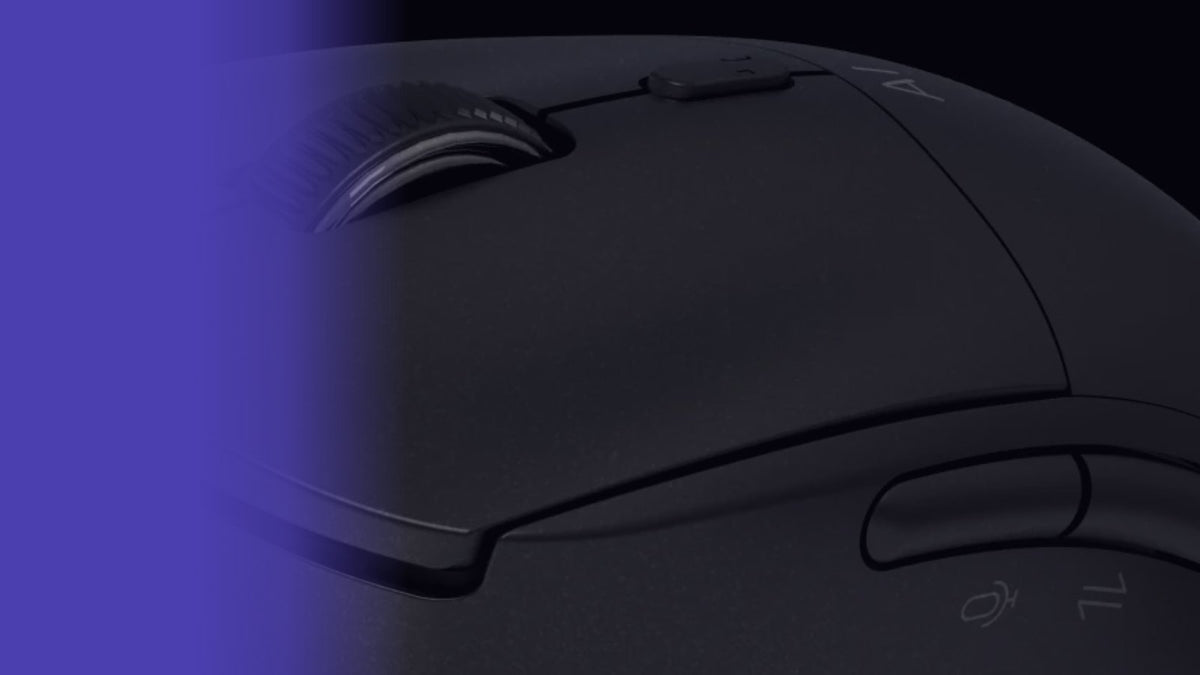
The Jethro AI Mouse (model Jethro V1, Amazon ASIN B0F1CM2WKM) is a wireless mouse with a built-in microphone and three dedicated buttons: a Voice button (hold to dictate), a Translation button (hold for voice translation, click for word translation), and an AI button (hold for AI voice typing, click to open AI chat, double-click to open AI assistants). It works alongside the free Virtusx AI App (formerly V-AI) on Windows 10/11 and macOS 12 or later.
Unlike software-only dictation, Jethro keeps your hands on a mouse the entire time — hold the voice button to start dictating, speak, and release to stop. There's no on-screen panel to open, no icon to find, and no second click just to end the recording.
What Is Windows Built-In Voice Typing?
Windows voice typing (Win+H) is a free, native Windows 10/11 feature that transcribes spoken words into any text field using Microsoft's cloud-based speech recognition. It supports over 20 languages as of 2024 and requires no additional hardware or software — just a microphone (built into most laptops) and an internet connection.
It's dictation-only: it doesn't control your cursor, open apps, translate text, or run AI commands. For anything beyond typing words, you're back to a mouse and keyboard. And because it's a separate on-screen panel, even starting and stopping requires moving to click the microphone icon each time.
Feature-by-Feature Comparison Table
| Spec | Jethro AI Mouse | Windows Voice Typing |
|---|---|---|
| Input type | Physical mouse + AI software | Software only |
| Dictation | Yes, via Voice/AI buttons | Yes |
| Translation | Yes, built-in button | No |
| AI chat / assistants | Yes, via AI button | No |
| Cursor/navigation control | Yes (it's a mouse) | No (needs separate mouse/keyboard) |
| Languages | 50+ (via Virtusx AI App) | 20+ (as of 2024) |
| Processing location | Cloud (voice typing / dictation also works offline) | Cloud-based |
| OS compatibility | Windows 10/11, macOS 12+ | Windows 10/11 only |
| Connectivity | 2.4 GHz USB receiver, Bluetooth, or wired | N/A (built into OS) |
| DPI | 800 / 1200 / 1600 / 2400 / 4000 | N/A |
Speed: Head-to-Head
| Factor | Jethro AI Mouse | Windows Voice Typing |
|---|---|---|
| Latency | Varies by processing mode (cloud or offline) | Depends on internet connection; cloud round-trip adds delay |
| Offline capability | Yes — voice typing / dictation also works offline | No — requires internet for cloud speech recognition |
| Supported commands | Dictation, translation, AI chat via buttons | Dictation only; basic punctuation voice commands |
Jethro's offline mode means dictation keeps working without Wi-Fi, which Windows voice typing cannot do since it depends on Microsoft's cloud speech engine. What matters more for daily use is the step count — Jethro's three-step hold-to-talk interaction versus Windows' five-step panel, as shown above.
Hands-Free Navigation vs Dictation-Only
This is the core functional difference. Windows voice typing transcribes what you say into a text box — full stop. To open an app, click a button, move between windows, or trigger any action beyond typing, you still need a mouse or keyboard.
That same single-button hold-to-talk model also means you never have to move your cursor onto a panel just to start or stop speaking — unlike Windows voice typing, where every session begins and ends with a click on the microphone icon.
The Jethro AI Mouse is, first, a mouse. You're already holding it to move the cursor and click. Dictation, translation, and AI chat are additional functions layered onto the same device via dedicated buttons — hold the Voice button to dictate, hold the AI button for AI voice typing, click the AI button to open AI chat, double-click for AI assistants. There's no tool-switching: the hand that's controlling your cursor is the same hand triggering voice input.
If your workflow is "type a paragraph, then go back to clicking and scrolling," Jethro removes the hand-off between dictation and navigation. If your workflow is "dictate a quick message in a text box I'm already in," Windows voice typing does that without any extra hardware.
Pricing: Hardware Cost vs Free Software
Windows voice typing costs nothing — it's built into Windows 10 and 11. The Jethro AI Mouse is a one-time hardware purchase; check the current price on Amazon. The Virtusx AI App that powers Jethro's dictation, translation, and AI features is free to download, with core features included; a paid upgrade adds stronger AI models, longer meeting time, and templates.
So the real comparison isn't about a price figure — it's "a mouse that replaces your current mouse and adds AI features" vs "free software that adds dictation to a mouse/keyboard you already own." If you need a new mouse anyway, Jethro's added cost over a standard mouse is worth weighing against what it adds.
Who Should Buy the Jethro AI Mouse
- You dictate dozens of short messages, emails or notes a day and want the fastest possible start and stop, with no on-screen panel to click through
- You want dictation, translation, and AI chat without switching between apps or memorizing keyboard shortcuts
- You work across both Windows and macOS (Windows voice typing doesn't exist on Mac)
- You want offline dictation for environments with unreliable internet
- You're already shopping for a new mouse and want AI features bundled in
- You want more language coverage (50+ via the Virtusx AI App vs 20+ for Windows voice typing)
See full specs on the Jethro AI Mouse product page.
Who Should Stick with Windows Voice Typing
- You only need occasional dictation into text fields and don't want to buy new hardware
- You're on Windows only and don't need translation or AI chat features
- Budget is the primary constraint and the cost of new hardware isn't justified by your use case
- You're satisfied with cloud-only speech recognition and have reliable internet
Setup and Learning Curve
Windows voice typing requires no setup — press Win+H and start talking. There's nothing to install and no learning curve beyond knowing the shortcut.
The Jethro AI Mouse requires downloading the free Virtusx AI App, pairing the mouse (via the included 2.4 GHz USB receiver, Bluetooth, or wired connection, switchable underneath the mouse), and learning the three AI buttons: Voice, Translation, and AI. Once set up, the buttons work the same way every time — hold to dictate, hold for translation, hold or click for AI functions — so the ongoing learning curve is minimal, but there is an initial setup step that Windows voice typing doesn't require.
Final Verdict
If you want free, basic dictation into text fields on Windows and nothing else, Windows voice typing already does the job — don't buy hardware you don't need. If you dictate often and want starting and stopping to take as few steps as possible — plus translation, AI chat, and meeting summaries built into the same device — the Jethro AI Mouse is built for that. They're not direct competitors so much as different tiers of the same need: Windows voice typing answers "how do I avoid typing," while Jethro answers "how do I start and stop talking without ever touching a panel."
FAQ
Is it faster to start and stop dictating with the Jethro AI Mouse than with Windows Voice Typing?
Yes, in terms of steps. Windows voice typing needs five actions — opening the panel with Windows + H, clicking the microphone icon, waiting for "Listening…," speaking, and clicking the microphone again to stop. The Jethro AI Mouse needs three — hold the voice button, speak, and release. Fewer steps mean less time navigating to a panel and more time actually dictating.
Does the Jethro AI Mouse work without Windows voice typing enabled?
Yes. The Jethro AI Mouse uses the Virtusx AI App's own dictation engine, triggered by holding the voice button, independent of Windows' built-in voice typing feature.
Can I use Windows voice typing and the Jethro AI Mouse together?
They run as separate systems — Windows voice typing opens via its own keyboard shortcut and on-screen panel, while Jethro's voice button triggers dictation directly through the Virtusx AI App. You can use either one on its own without disabling the other.
Is Windows voice typing free, and does that make it a better choice?
Windows voice typing is free and built into Windows 10/11, making it cost-effective for basic, occasional dictation. It doesn't offer hands-free cursor control, translation, or AI chat — features the Jethro AI Mouse includes through dedicated buttons and the Virtusx AI App, started and stopped with a single hold-and-release.
What languages does the Jethro AI Mouse support compared to Windows voice typing?
Windows voice typing supports 20+ languages as of 2024. The Jethro AI Mouse, through the Virtusx AI App, supports 50+ languages for dictation.
---
Want to try AI dictation, translation, and chat without new hardware first? Download the Virtusx AI App free, or see full specs on the Jethro AI Mouse page. Pairs well with the Virtusx Phronesis AI Keyboard for a fully AI-equipped desktop.
Share:
Virtusx Phronesis vs MX Keys: Which Boosts Productivity?