Help Center/Software/Learning Center
Learning Center
Seven lessons, the same as in the Virtusx app. Each one takes a few minutes.
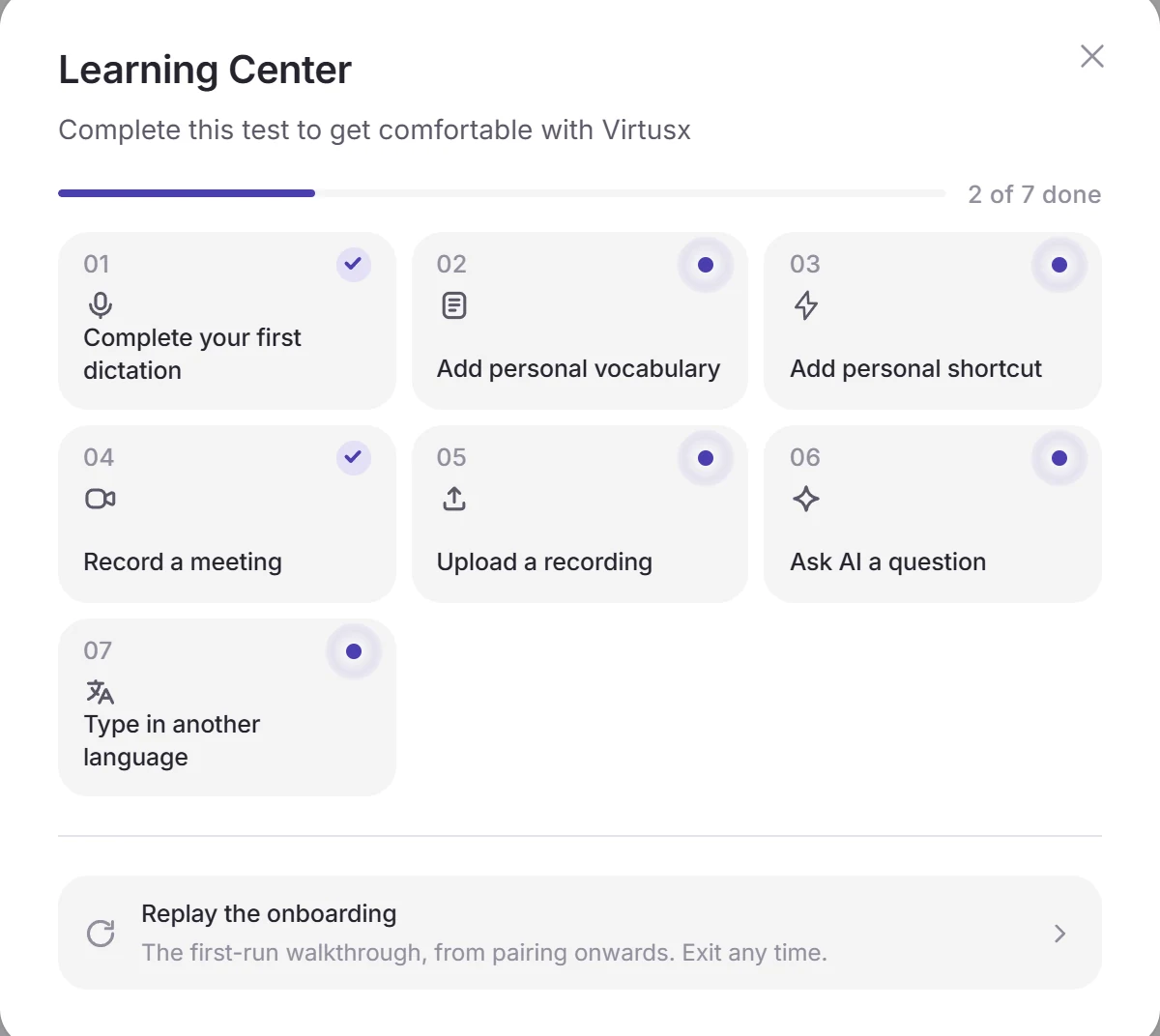
Open it in the app
- Open the Virtusx app.
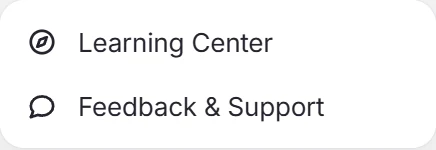
- Press the ? button at the bottom left, next to your profile, and choose Learning Center.
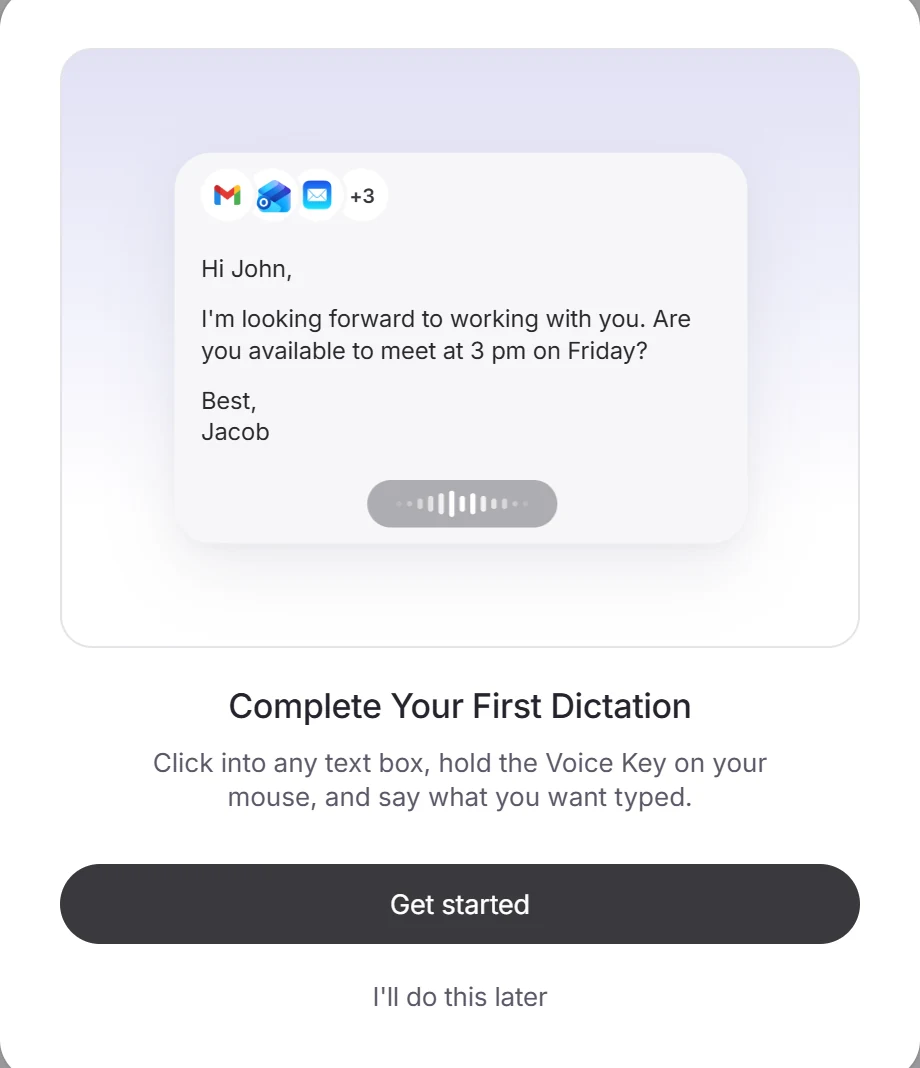
- Pick a lesson and press Get started. The lesson walks you through the real screens, one step at a time.
- Each lesson you finish gets a tick, so you can see what is left.
The seven lessons
Each lesson takes a few minutes. Open the Learning Center any time to do one again.
- 01Complete Your First DictationClick into any text box, hold the Mic key on Jethro, and say what you want typed.
- 02Add a Personal TermHelp Virtusx recognize the words that matter to you. Add names, slang, or custom terms.
- 03Add a Personal ShortcutSay a short phrase and let Virtusx type the long version, like emails, addresses, and links.
- 04Record a MeetingStart a recording from Jethro. Virtusx writes it up and gives you a link to share.
- 05Upload a RecordingAlready have the audio? Virtusx transcribes the file and writes it up like any other meeting.
- 06Ask AI Out LoudHold the AI key on Jethro and ask anything out loud. The answer comes back in Chat.
- 07Type in Another LanguageSpeak your language and Virtusx types the translation into whatever app you are in.