Help Center/Hardware/Jethro hardware/Connect Jethro
Connect Jethro
Jethro connects three ways: wireless connection 1, wireless connection 2, or the USB receiver. Up to three computers.
Before you start
Steps
- Turn Jethro over and slide the power switch to ON.
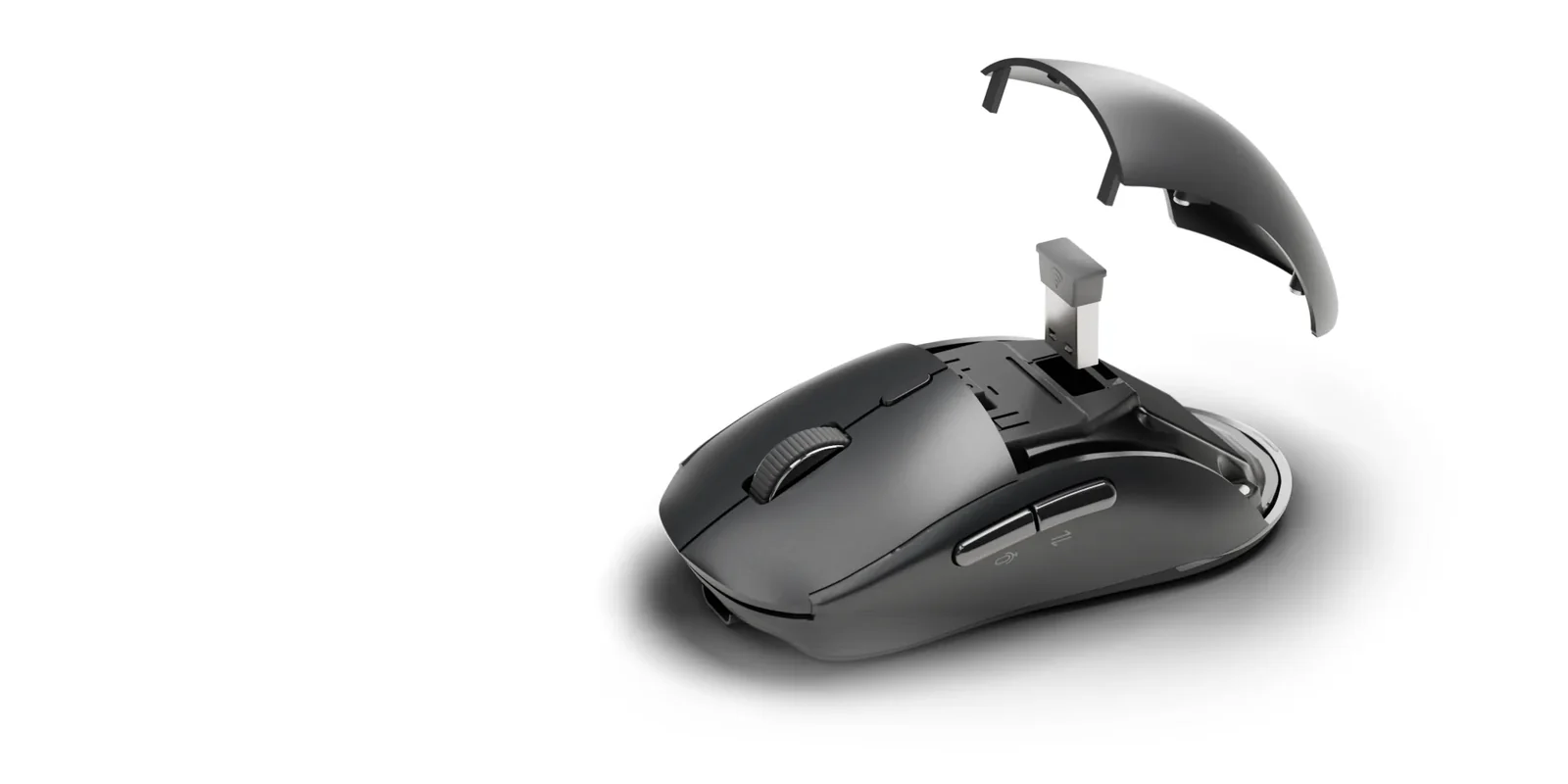
- Lift off the palm cover, take out the USB receiver, and put the cover back.
- Plug the receiver into a USB port on your computer. Jethro connects on its own.
- To switch to another computer, press the button on the bottom. Each press moves to the next connection, and the light next to it shows which one is on: red for the USB receiver, blue for wireless connection 1, purple for wireless connection 2.
- The first time you use wireless connection 1 or 2 with a computer, press the button until the light shows the connection you want, blue or purple. Then press and hold the button until the light blinks fast: Jethro is ready to pair.
- On the computer, open the settings for wireless devices and pick Jethro.
Tips
- Keep the receiver with JethroWhen you travel, put it back under the palm cover so it never goes missing.
- No app needed to point and clickJethro works as a regular mouse on any computer. The Mic key, Translate key and AI key need the Virtusx app.
If it does not work
Related
- Install the Virtusx app on WindowsFour steps to start talking.
- Install the Virtusx app on MacFour steps to start talking. Allow the microphone and accessibility, so Virtusx can hear you and type for you.
- Jethro hardwareCharging, the power switch, the palm cover and receiver, and the three connections.
Was this helpful?